


Blink Home Monitor
4.532.41K Reviews
App Specs
- Version
- 59.0
- Updated On
- License
- Free
- Downloads
- 10,000,000+
- Developer
- Immedia Semiconductor
- Categories
- Tools
- Platform
- Android, iOS
Screenshots

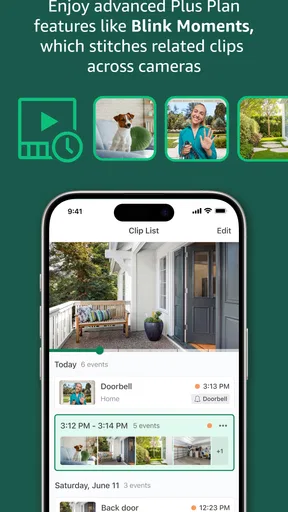
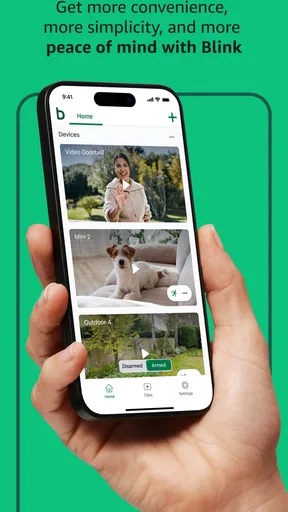
 Analysis by AppCompare
I find a home-monitoring app most useful when it fits into a repeatable routine, rather than becoming another screen I check at random. Blink Home Monitor is built to manage Blink wireless security cameras from a phone, so its appeal is strongest if you already use that camera system or are choosing cameras with a straightforward mobile workflow in mind. It is a free tools app from Immedia Semiconductor, and its focus is practical: check a view, respond to an alert, and get back to what you were doing.
The key question is not simply whether you can open a camera feed. It is whether the app helps you make sensible checks without encouraging constant monitoring. I would treat it as a convenient way to stay informed about activity at home, not as a substitute for being there or for choosing the right camera placement. Once I settled on a small number of useful checks and adjusted what I could, the app made more sense as part of an everyday habit.
A steady routine beats constant checking
My baseline workflow is simple: open the camera view when I have a reason, use motion alerts as prompts rather than proof of a problem, and check the relevant camera before deciding whether to act. That distinction matters. An alert tells me that activity was detected; it does not tell me by itself whether the movement is important. A passing person, a pet, or activity near a busy doorway can all call for a quick look before I draw conclusions.
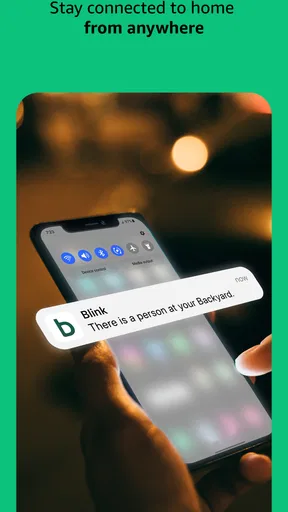
For example, imagine leaving home in the morning and receiving a notification while you are on the way to work. I would first check which camera triggered it and whether the live view gives enough context. If the activity is ordinary, I can put the phone away instead of repeatedly reopening the app. If I need to speak through a camera, two-way audio gives me a direct way to do that. The useful habit is deciding in advance what merits a follow-up, so every alert does not interrupt the whole day.
This approach also makes the app easier to live with if several cameras cover different areas. Instead of scanning every view out of habit, I would give each camera a clear purpose: a particular entrance, a room, or another area I genuinely need to check. A camera that has no defined job can generate activity without adding much reassurance. Placement and purpose are part of the monitoring workflow, not just installation details.
Check the choices that affect alert quality
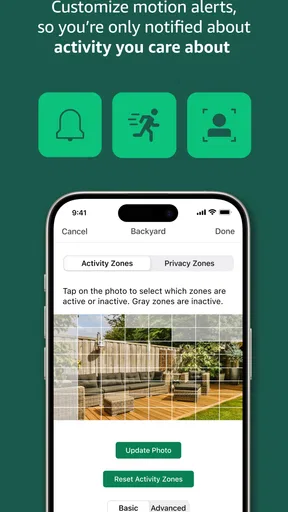
Motion zones are among the more useful controls because they let you narrow attention to selected parts of a camera’s view. I would use them to exclude a predictable source of movement where possible, rather than accepting repeated notifications and learning to ignore them. The trade-off is that a zone drawn too tightly can also exclude activity you meant to catch. After changing a zone, it is sensible to observe how the alerts behave during normal household activity and adjust if the results are noisy or incomplete.
Notification habits deserve the same care. If every motion event is equally urgent, the phone can become distracting and the important moments may be easier to miss. I prefer to decide which cameras deserve immediate attention and which can be checked when convenient, using the app’s available controls to suit that routine. The details of what appears can depend on the camera setup, so I would verify the behaviour on the cameras I actually use rather than assume every view will be equally active or quiet.
Worth Reading Before You Choose

EA SPORTS FC Mobile 26 Is a Bigger Football Game, but It Takes Time

Flipboard Shows What News Apps Must Do Beyond the Feed

Switching to Android Auto Means Rethinking Your Driving Routine

Google Calendar Makes a Crowded Week Easier to Manage

Ludo King Makes the Most of the Minutes Between Plans

Baby Panda World Brings Quick Play to Modern Phones, but Its Game Library Feels Busy
Connection quality is another practical consideration. A live view relies on the camera, phone, and network being able to communicate, so a delay or a slow-loading feed is not automatically a sign that the camera has failed. When a feed feels unreliable, I would check the connection and try again before treating a single slow response as a security incident. This is especially relevant when checking away from home over mobile data: a quick check is convenient, but it still depends on the network available at both ends.
Use shortcuts without losing context
The fastest useful pattern is to open the notification that prompted the check, identify the camera, and review the view before taking action. That is more efficient than opening the app and browsing every camera one by one. If you often check the same view at predictable times, make that a deliberate routine—for example, a quick check before leaving or after arriving home—rather than repeatedly checking without a clear reason.
Live streaming and motion alerts serve different purposes. A notification can tell me where to look, while a live stream helps me assess what is happening now. A saved clip, where available in the user’s setup, can be useful for reviewing an event after it has passed. I would not treat a live view as a record of everything that happened, or assume that every event will be captured in a form I can revisit. Knowing which kind of check I need prevents me from expecting one feature to do another feature’s job.
Two-way audio is best used with a little restraint. It can be handy for speaking to someone at home or addressing a visitor, but I would first make sure I have the right camera selected and that speaking is appropriate for the situation. It is not a replacement for calling someone directly when a conversation needs privacy or detail. Likewise, voice control through Alexa may make a simple check more convenient for people already using that ecosystem, but the phone remains the clearer option when I need to inspect settings or respond carefully to an alert.
Where this app fits—and where it does not
Compared with a basic camera viewer, Blink Home Monitor brings monitoring actions together: checking views, receiving motion notifications, and using camera features such as two-way audio. Compared with a broad smart-home hub, it is more focused on Blink camera management. That focus can make it easier to understand if your cameras are already part of the Blink setup, but it is not the natural choice for someone who wants one app to manage cameras from several unrelated brands.
I would recommend it most to someone who owns compatible Blink cameras and wants a familiar phone-based way to check home activity without building a complicated system. It also suits a household that can agree on a few sensible habits: who responds to alerts, which camera matters for which situation, and when a live check is worth interrupting the day. People who want a single interface for a mixed-brand security setup, or who do not want to rely on a phone and network for checks, may be better served by a different arrangement.
One practical question is whether it can be useful when you are away from home. Yes, the point of using a mobile monitor is that you can check connected cameras remotely, but the experience depends on connectivity. Another is whether notifications eliminate the need to open the app. They can bring activity to your attention, but reviewing the camera is still how you add context. And if you are wondering whether the app is only for live viewing, features such as alerts, camera controls, and two-way audio make it more than a passive viewer, while the exact options available depend on the cameras and setup.
What experience and popularity tell me
The app has an average rating of 4.5 from around 207,000 ratings, with about 32,000 written reviews and over 10 million installs. Those figures suggest that many people have adopted it, but they do not tell me whether it will suit a particular home. Camera placement, network reliability, notification preferences, and the way a household responds to alerts matter more to my recommendation than popularity alone.
It is rated for Everyone and is free to install. The app was released on January 7, 2016, and version 55.1 requires Android 10 or later. Those details are useful when checking whether a device can run it, especially on an older phone. I would still think about the wider setup before installing: this is most valuable when it has Blink cameras to manage and when the person using it is comfortable making occasional, purposeful checks.
Setting Up and Getting Started
Let me just say, the setup process for the Blink Home Monitor app was a breeze. Once I downloaded it from the app store, I was guided through a straightforward process to link my cameras. If you’re worried about techy stuff, fear not! It's as simple as scanning a QR code, and boom, you're connected. The app was intuitive, making the initial setup a walk in the park, even for the less tech-savvy among us.
User Interface and Experience
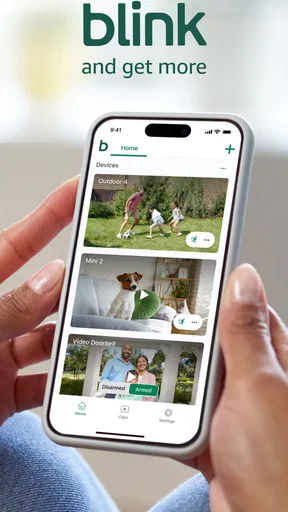
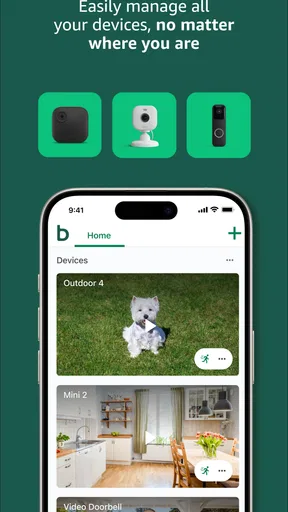
Once inside, the app's interface is clean and user-friendly. The main dashboard gives you a quick view of all your cameras, and switching between them is as easy as swiping left or right. I appreciated how the app highlights important alerts with a little red dot, ensuring you don’t miss any action.
Navigation is smooth, and everything is where you expect it to be. The developers clearly prioritized usability. Whether you're checking a live feed or adjusting settings, it all feels intuitive. The app also integrates seamlessly with Alexa, allowing voice control and even more convenience.
Features That Stand Out
Now, onto the good stuff—features! The app is packed with functionalities that make managing your security cameras a breeze. Here are a few highlights:
- Live Streaming: You can view live streams of all connected cameras, perfect for a quick check-in when you're out and about.
- Motion Detection Alerts: The app sends instant notifications whenever motion is detected, ensuring you’re always in the loop.
- Two-Way Audio: This nifty feature lets you communicate through the cameras, handy for talking to family or shooing away unwanted visitors.
- Cloud Storage: Storing clips in the cloud ensures you can access footage anywhere, anytime.
The app also allows for custom motion zones, which means you can specify areas to monitor more closely. This feature minimizes false alarms, which can be a real lifesaver.
Performance and Reliability
The performance of the Blink Home Monitor app has been rock solid for me. Live video streams are crisp, with minimal lag, even on mobile data. The motion detection is surprisingly accurate, and the alerts come through almost instantly.
However, it’s worth noting that the app's performance can depend on your internet connection. A stable Wi-Fi connection ensures a smoother experience. But even when my connection was less than ideal, the app held up well.
Final Thoughts
In conclusion, the Blink Home Monitor app offers a comprehensive, user-friendly solution for managing home security. Its ease of use, coupled with robust features, makes it a must-have for Blink camera owners. Whether you’re a tech enthusiast or someone just looking for peace of mind, this app delivers.
So, if you're looking to keep an eye on things while you're away, give the Blink Home Monitor app a try. It's like having a security guard in your pocket, ensuring you’re always connected to home sweet home.
Pros
- Easy setup and installation process.
- High-quality video streaming.
- Customizable motion alerts.
- Long battery life on cameras.
- Intuitive and user-friendly interface.
Cons
- Limited free cloud storage.
- Requires subscription for full features.
- Occasional connectivity issues.
- No local storage option.
- Limited integration with smart home devices.
FAQs for Blink Home Monitor
What features does the Blink Home Monitor app offer?
The Blink Home Monitor app provides users with a range of features, including live video streaming, motion detection alerts, and two-way audio. Users can also customize notifications, set up multiple cameras, and access recorded clips. The app is compatible with Blink's indoor and outdoor cameras, offering comprehensive home security monitoring.
Is the Blink Home Monitor app easy to set up and use?
Yes, the Blink Home Monitor app is designed for ease of use. The setup process is straightforward, requiring users to create an account and follow step-by-step instructions to connect their Blink cameras. The user interface is intuitive, allowing users to easily navigate through camera feeds, settings, and notifications.
Does the Blink Home Monitor app require a subscription?
The Blink Home Monitor app itself is free to download and use. However, to access cloud storage for video clips, users may need to subscribe to a Blink subscription plan. The subscription provides additional features such as extended cloud storage and video history, enhancing the overall functionality of the app.
How does the Blink Home Monitor app handle data privacy and security?
Blink Home Monitor places a strong emphasis on data privacy and security. Video feeds are encrypted, and users have control over their data. The app requires a secure login, and features like two-factor authentication enhance account protection. Users can manage their privacy settings within the app to ensure their data is secure.
Is the Blink Home Monitor app compatible with all devices?
The Blink Home Monitor app is compatible with both Android and iOS devices, ensuring a wide range of accessibility. Users can download the app from the Google Play Store or Apple App Store. It supports various Blink camera models, but it's advisable to check compatibility with specific camera versions before purchasing.


